Navigating ATT&CK Navigator: Building, Annotating, and Exporting Technique Layers
Objective: Understand how to use MITRE ATT&CK Navigator to build, annotate, combine, and export technique layers – the JSON layer format, per-technique annotation fields, gap analysis via score expressions, programmatic generation, and the operational security controls around layer files for threat-informed defense and adversary emulation.
ATT&CK Navigator is a web-based tool for annotating and exploring ATT&CK matrices. It visualizes defensive coverage, supports red/blue team planning, and tracks the frequency of detected techniques. It is a meta-tool: it generates no host telemetry and maps to no single ATT&CK technique. Instead, it is the primary planning surface for structured adversary emulation and threat-informed defense.
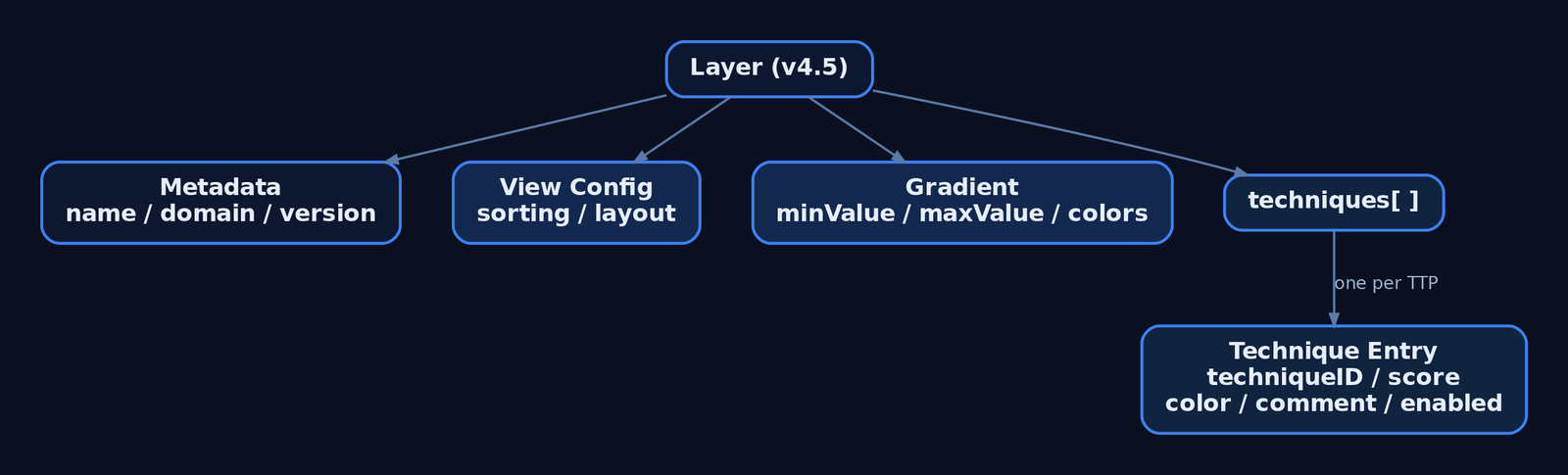
The unit of work is the layer – a JSON file scoped to one ATT&CK domain and matrix version, listing techniques with whatever annotations have been applied. Layers can store a default view configuration (sorting, visible platforms) and can be authored interactively in the UI or generated programmatically.
The current release is v5.3.2 (April 21, 2026). The hosted instance lives at mitre-attack.github.io/attack-navigator/.
2. Tool Setup: Hosted Instance vs. Self-Hosted
The hosted instance is the fastest start. Layer files uploaded to it stay client-side – nothing is stored on MITRE’s servers. Despite that, MITRE recommends running your own instance if your layer files contain sensitive content.
Navigator is a dynamic web application that runs on Node.js and Angular CLI, and installs on Linux. A self-hosted instance can be air-gapped and fed local STIX bundles via the customDataURL field or customDataURL query parameter.
git clone https://github.com/mitre-attack/attack-navigator.git
cd attack-navigator/nav-app
npm install
ng serve   # serves the Navigator on localhost:4200
Self-hosted configuration lives in nav-app/src/assets/config.json. The banner setting (default empty string) displays HTML content at the top of the page. The features array lists togglable features; setting enabled: false on a feature hides all of its control elements.
3. Anatomy of a Layer: The JSON Schema
The current specification is Version 4.5 of the layer file format. Field names are case-sensitive – techniqueID, not techniqueId.
| Field | Description |
|---|---|
name | Human-readable layer name |
versions | Object with attack, navigator, layer sub-fields |
domain | "enterprise-attack" | "mobile-attack" | "ics-attack" |
description | Free-text description of the layer |
techniques | Array of technique annotation objects |
gradient | Scoring gradient object |
legendItems | Array of legend entries |
filters | Platform/stage filter settings |
sorting | Integer 0-3 controlling sort order within tactics |
layout | Controls matrix display layout |
hideDisabled | Boolean – omit or grey-out disabled techniques |
metadata | Layer-level key/value metadata |
links | Layer-level link objects |
customDataURL | URL of a custom STIX bundle or ATT&CK Collection |
A minimal valid layer:
{
  "name": "Detection Coverage Baseline",
  "versions": {
    "attack": "15",
    "navigator": "5.3.2",
    "layer": "4.5"
  },
  "domain": "enterprise-attack",
  "description": "Blue-team detection posture",
  "techniques": []
}
The sorting field controls ordering within each tactic: 0 ascending by name, 1 descending by name, 2 ascending by score, 3 descending by score.
4. Building a Layer from Scratch (UI Walkthrough)
Open Navigator and select Create New Layer. Choose a domain (Enterprise, Mobile, or ICS) and an ATT&CK version – these become the domain and versions.attack fields. The matrix renders with every tactic as a column and techniques stacked beneath.
Use search to query by keyword, and multiselect to bulk-select techniques by platform, data source, or tactic. Selecting a technique highlights it; the right-click context menu and the technique controls bar apply annotations to the current selection. Expand a parent technique to reveal and individually annotate its sub-techniques (showSubtechniques: true).
This is the core discipline: select the techniques relevant to your engagement or coverage assessment, then annotate the selection rather than each cell one at a time.
5. Annotating Techniques: Colors, Scores, Comments, Metadata, and Links
Each object in the techniques array supports these fields:
| Field | Description |
|---|---|
techniqueID | Technique ID, e.g. "T1059" or sub-technique "T1059.001" |
tactic | Tactic identifier, e.g. "execution"; if absent, annotation applies under every tactic the technique belongs to |
score | Numeric score; if omitted the technique is “unscored” and gets no gradient color |
color | Explicit hex color – overrides any color implied by the score |
comment | Analyst comment; rendered as a tooltip with an underline indicator |
enabled | Boolean; false disables/hides the technique |
metadata | Array of user-defined key/value objects |
links | Array of label + url objects |
showSubtechniques | Boolean; expands sub-techniques in the view |
"techniques": [
  {
    "techniqueID": "T1078",
    "color": "#fc3b3b"
  },
  {
    "techniqueID": "T1059.001",
    "tactic": "execution",
    "score": 75,
    "comment": "Script Block Logging on; no behavioral alert yet"
  },
  {
    "techniqueID": "T1055",
    "enabled": false,
    "metadata": [
      { "name": "owner", "value": "detection-eng" },
      { "name": "ticket", "value": "DET-4412" }
    ]
  }
]
Scored techniques draw their fill color from the gradient. Define a red→yellow→green scale to read low coverage at a glance:
"gradient": {
  "colors": ["#ff6666", "#ffe766", "#8ec843"],
  "minValue": 0,
  "maxValue": 100
}
Make the scale legible to stakeholders with legendItems:
"legendItems": [
  { "label": "No Coverage", "color": "#ff6666" },
  { "label": "Logged Only", "color": "#ffe766" },
  { "label": "Alerted",     "color": "#8ec843" }
]
Use an explicit color for binary states (in-scope vs. out-of-scope), and score + gradient for graded coverage. Set enabled: false to grey out techniques irrelevant to the assessment so the heat-map stays readable.
6. Working with Pre-Built Threat Group Layers
ATT&CK publishes pre-built Navigator layers for documented threat groups. From any group’s page on attack.mitre.org, use the option to view or export the group’s technique usage as a Navigator layer – stored as a JSON file.
Import these as the baseline for adversary emulation planning: the group layer becomes the what they do, and your detection-coverage layer becomes the what you can see. Loading the group’s JSON via Open Existing Layer instantly highlights every technique attributed to that adversary across the matrix.
7. Combining Layers: Gap Analysis via Score Expressions
Layers compose. Create New Layer → Create Layer from Other Layers lets Navigator produce a calculated layer from arithmetic over loaded layers, which is how you build gap analysis without spreadsheets.
Each open layer is assigned a variable (a, b, c). Entering a score expression of a+b+c combines scores across three threat-group layers, surfacing technique overlap among multiple adversaries.
The high-value workflow for detection engineering: load the adversary group layer (a) and your detection-coverage layer (b), then evaluate b - a. Techniques the adversary uses but you cannot detect render with negative scores – these are your prioritized work items. Set sorting: 3 to float the highest-scored (or, inverted, the worst-gap) techniques to the top of each tactic.
{
  "name": "Coverage Gap (b - a)",
  "domain": "enterprise-attack",
  "sorting": 3,
  "gradient": {
    "colors": ["#ff6666", "#ffffff", "#8ec843"],
    "minValue": -100,
    "maxValue": 100
  }
}
8. Programmatic Layer Generation with Python
Author layers at scale with mitreattack-python. Query the STIX data for a named intrusion-set, collect the techniques tied to it, and serialize a v4.5 layer dict.
import json
from mitreattack.stixdata import MitreAttackData

mad = MitreAttackData("enterprise-attack.json")

group = mad.get_groups_by_alias("APT29")[0]
techniques = mad.get_techniques_used_by_group(group["id"])

annotations = []
for t in techniques:
    attack_id = mad.get_attack_id(t["object"]["id"])
    annotations.append({
        "techniqueID": attack_id,
        "score": 1,
        "comment": "Attributed via STIX intrusion-set relationship"
    })

layer = {
    "name": f"{group['name']} TTPs",
    "versions": {"attack": "15", "navigator": "5.3.2", "layer": "4.5"},
    "domain": "enterprise-attack",
    "description": "Auto-generated group layer",
    "techniques": annotations,
    "gradient": {"colors": ["#ffffff", "#fc3b3b"], "minValue": 0, "maxValue": 1}
}

with open("apt_layer.json", "w") as f:
    json.dump(layer, f, indent=2)
Generated JSON round-trips straight back into the UI via Open Existing Layer. Consuming a finished layer is equally simple – ingest it into reporting tooling and emit a Markdown gap table:
import json

with open("coverage_gap.json") as f:
    layer = json.load(f)

print("| Technique | Score | Comment |")
print("|---|---|---|")
for t in layer["techniques"]:
    print(f"| {t['techniqueID']} | {t.get('score','-')} | {t.get('comment','')} |")
9. Exporting Layers: JSON, SVG, Excel, and Multi-Layer Bundles
Search and filter the matrix to the exact view you want, then export it.
| Export | Control | Use |
|---|---|---|
| JSON | “Code Blocks” download | Version control, pipeline ingestion |
| Excel | “Table View” export | Stakeholder spreadsheets |
| SVG | Camera icon | Report and CISO-deck renders |
| Multi-layer bundle | Download all open layers | Share a layer set as one file |
Embed a hosted layer directly in a report or internal portal with the layerURL query parameter:
<iframe
  src="https://mitre-attack.github.io/attack-navigator/#layerURL=https://intranet.local/layers/coverage_gap.json"
  width="100%" height="900" frameborder="0">
</iframe>
10. Layer Versioning and Migration
The sub-techniques update replaced many techniques with sub-techniques carrying new IDs, so layers authored before that release may not render correctly in newer matrices. The official update-layers.py script both upgrades a layer to the latest format and remaps technique IDs to their replacers where possible.
python3 update-layers.py --input old_layer.json --output migrated_layer.jsonThe in-app layer upgrade wizard (added in v5.x alongside STIX 2.1 Collection Index and TAXII 2.1 support) walks changed techniques interactively: it lists each technique’s previous and current state with links to both versions. Enable show annotated techniques only to focus on your annotations, then copy them from the previous version to the current one.
11. Common Attacker Techniques
Navigator is a planning tool – the “techniques” it manipulates are ATT&CK TTPs encoded as techniqueID values. The table below shows representative primitives a red team maps post-engagement and a blue team scores for coverage.
| Technique | Description |
|---|---|
| Valid Accounts | Reuse of legitimate credentials; mapped as T1078 |
| PowerShell Execution | Script-based execution; mapped as T1059.001 |
| Process Injection | Code execution in another process; mapped as T1055 |
| OS Credential Dumping | LSASS access for credential theft; mapped as T1003.001 |
Each cell in Navigator links to the technique’s ATT&CK page, which exposes Data Sources, Detections, and Mitigations – use Navigator as the bridge into those fields, not the endpoint.
12. Defensive Strategies & Detection
The Navigator generates no telemetry; the defensive concern is twofold – layer-file OPSEC and translating scores into real detection.
Layer-file operational security:
– Layer JSON may contain red-team TTPs, engagement timelines, and detection-gap scoring. Do not upload sensitive layers to the public hosted instance.
– Hosted-instance uploads stay client-side, but run a self-hosted, access-controlled instance (auth proxy or VPN-only) for operational data.
– Version-control layers in Git with access controls equal to other sensitive operational documentation.
Translating scores to detection: a technique scored 0 in your coverage layer should map to a missing Sysmon rule, ETW subscription, or audit policy. Cross-reference each low-scored techniqueID against the ATT&CK page’s data sources. For T1059.001 (PowerShell): Sysmon Event ID 1 (Process Create), Event ID 4104 (Script Block Logging via the Microsoft-Windows-PowerShell ETW provider), and audit policy Audit Process Creation.
A Sigma rule sketch for the missing detection identified by a gap layer:
title: Suspicious PowerShell Script Block Execution
logsource:
  product: windows
  service: powershell
detection:
  selection:
    EventID: 4104
    ScriptBlockText|contains:
      - 'IEX'
      - 'DownloadString'
      - 'FromBase64String'
  condition: selection
level: high
Overlaying an adversary layer (a) against a coverage layer (b) with the score expression b - a surfaces negative-score techniques – adversary TTPs you cannot detect – as the highest-priority detection-engineering backlog.

13. Tools for Layer Analysis
| Tool | Description | Link |
|---|---|---|
| ATT&CK Navigator | Build/annotate/export technique layers | mitre-attack.github.io |
mitreattack-python | Query STIX data, generate layers programmatically | github.com |
update-layers.py | Migrate layers across ATT&CK versions | github.com |
| attack.mitre.org | Source of pre-built group layers + detection data | attack.mitre.org |
| Sysmon | Host telemetry to back coverage scores | learn.microsoft.com |
| Sigma | Portable detection rules for scored gaps | sigmahq.io |
14. MITRE ATT&CK Mapping
Navigator has no technique ID of its own – it is a blue/purple-team planning tool. Its ATT&CK relevance is the technique IDs you place inside layers and the detection guidance each one links to.
| Technique | MITRE ID | Detection |
|---|---|---|
| Valid Accounts | T1078 | Auth logs, anomalous logon (Event ID 4624) |
| PowerShell | T1059.001 | Sysmon Event ID 1, Event ID 4104 |
| Process Injection | T1055 | Sysmon Event ID 8, Event ID 10 |
| OS Credential Dumping: LSASS | T1003.001 | Sysmon Event ID 10 (lsass.exe access) |
Summary
- ATT&CK Navigator is the standard planning surface for threat-informed defense and adversary emulation – it visualizes coverage, it does not attack.
- Layers are v4.5-format JSON files scoped to one domain; per-technique fields (
techniqueID,score,color,comment,metadata,enabled) drive the heat-map. - Score expressions like
b - aturn adversary and coverage layers into automatic gap analysis, surfacing undetectable TTPs as detection-engineering work. - Generate layers programmatically with
mitreattack-python, migrate them withupdate-layers.py, and export to JSON, SVG, or Excel. - Treat layer files as sensitive: self-host with access control, version them in Git, and cross-reference every low score against real Sysmon/ETW/audit-policy detections.
Related Tutorials
- Mapping CTI Reports to ATT&CK TTPs: A Step-by-Step Methodology
- Introduction to MITRE ATT&CK: Structure, Tactics, Techniques, and Sub-Techniques
- APT Profiling: How to Build a Comprehensive Adversary Profile from Open-Source Intelligence
- Building a Red Team Lab: Infrastructure, VMs, and C2 Setup
- Cyber Threat Intelligence (CTI) Fundamentals: Sources, Types, and the Intelligence Lifecycle
References
- ATT&CK Navigator – Official GitHub Repository (mitre-attack/attack-navigator)
- ATT&CK Navigator USAGE.md – Building, Annotating & Exporting Layers
- ATT&CK Navigator Layer File Format Specification v4.5
- ATT&CK Navigator Layers README – Examples & Programmatic Generation
- MITRE ATT&CK – Adversary Emulation Plans (Official)
- MITRE ATT&CK – Getting Started: Adversary Emulation and Red Teaming
Get new drops in your inbox
Windows internals, exploit dev, and red-team write-ups - no spam, unsubscribe anytime.